Canva: What Is It, How to Use It and Create Professional Designs Easily
Learn what Canva is, explore its uses, create professional templates and discover how Canva helps businesses, creators and beginners.
You need a poster for Saturday's sale, a thumbnail for tonight's YouTube upload and a fresh resume for Monday's interview, and you have never opened design software in your life. That is exactly the situation Canva was built for. This guide explains what Canva is, what you can make with it, and how to create your first professional design step by step, even if you are a complete beginner.
What Is Canva?
Canva is an online design platform that lets you create graphics, documents, presentations and videos using ready-made templates and a simple drag-and-drop editor. It was founded in Australia and launched in 2013, and it has grown into one of the most widely used design tools in the world.
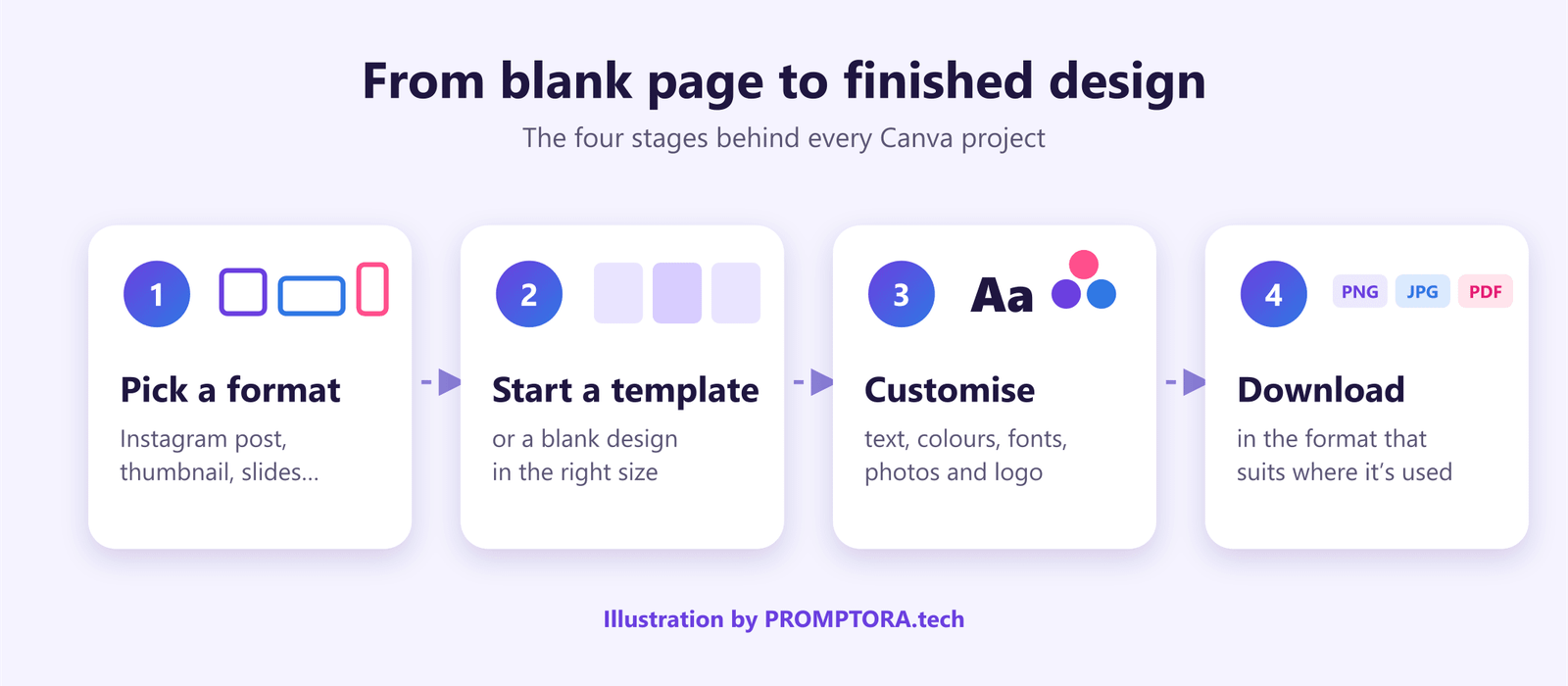
Instead of starting from a blank canvas and learning complicated tools, you pick a template that is already the right size (an Instagram post, a YouTube thumbnail, an A4 flyer), then swap in your own text, colours, photos and logo. Canva runs in your web browser, and there are apps for Windows, Mac, Android and iPhone, so you can start a design on your laptop and finish it on your phone.
Why is Canva so popular?
- It is easy to learn. Most people make something usable within their first 15 minutes.
- There are templates for almost everything, from wedding invitations to pitch decks, so you rarely start from nothing.
- There is a generous free plan. You can design, download and share without paying.
- It works anywhere. Your designs are saved online and sync across devices.
- It is built for teamwork. You can share a design with a link and edit it together in real time.
- It has AI tools built in. Canva includes AI-powered features for writing text, generating images and editing photos (availability depends on your plan).
Who can use Canva?
Practically anyone who needs to communicate visually:
- Small business owners making offers, menus, price lists and WhatsApp status posts.
- Students preparing presentations, project reports, posters and resumes.
- Teachers creating worksheets, classroom charts and certificates.
- Content creators designing thumbnails, Reels covers and channel art.
- Digital marketers producing ad creatives, banners and social campaigns at speed.
- Freelancers and job seekers building portfolios, CVs and business cards.
Is Canva suitable for beginners?
Yes, and this is Canva's biggest strength. You do not need to understand layers, pixels or colour theory to get a good result, because the templates have already been laid out by designers. As you gain confidence, you can go further with your own layouts, brand colours, animations and print-ready files. If you want to compare it with similar tools, browse our graphic design tools on PROMPTORA.
12 Practical Uses of Canva (with Real Examples)
Here is what people actually use Canva for, with a simple real-world example for each.
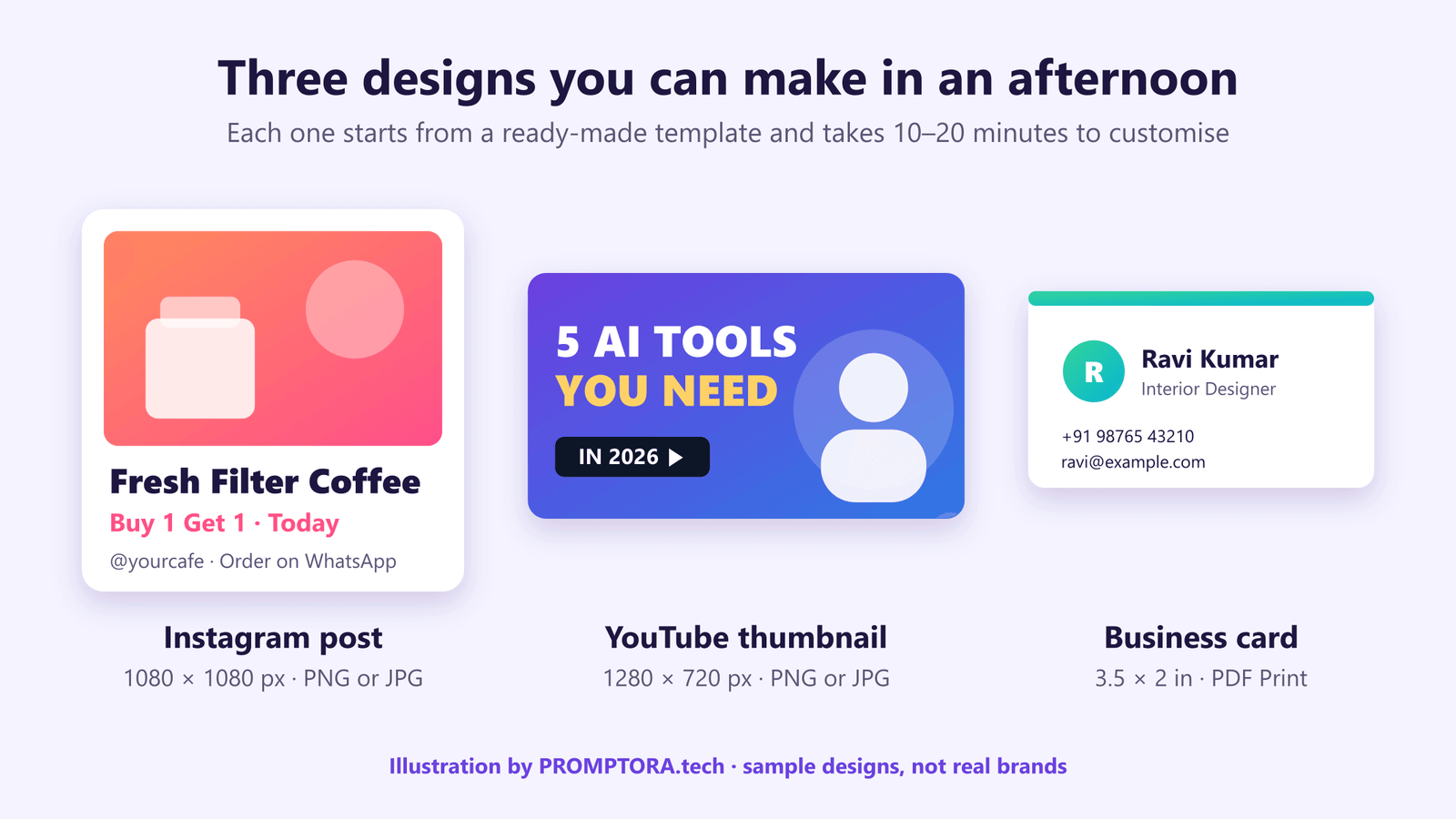
1. Social media posts for Instagram, Facebook and LinkedIn
A home bakery in Pune can turn one photo of a chocolate cake into an Instagram post, a Facebook story and a LinkedIn update in minutes. Canva's templates come in the right size for each platform, so nothing gets cropped awkwardly.
2. YouTube thumbnails and channel banners
A tech reviewer can use a thumbnail template with bold text, a cut-out photo and a bright background to stand out in search results. The same channel can design a matching banner so the whole channel looks consistent.
3. Business logos and brand designs
A new tuition centre can explore logo layouts, choose its colours and fonts, and create a simple brand look for its signboard, letterhead and social profiles. (See the tip about trademarks in the FAQ below before you finalise a logo.)
4. Posters, flyers and brochures
A gym launching a festive membership offer can design an A4 poster for its reception, a flyer to hand out in the neighbourhood and a tri-fold brochure that lists its plans and timings.
5. Business presentations
A startup founder can turn rough notes into a clean pitch deck, and present directly from Canva or download it as a PDF or PowerPoint file to share with investors.
6. Resumes and professional CVs
A fresh graduate can pick a clean, readable resume template, add their education, internships and skills, and download it as a PDF ready to upload to job portals.
7. Business cards
A freelance photographer can design a two-sided business card with a QR code that links to their portfolio, then download a print-ready PDF for the local printer.
8. Invitations and certificates
A school can design invitations for its annual day and create participation certificates for every student, using one template and simply changing the names.
9. Marketing advertisements
A digital marketer can produce several versions of the same ad (different headlines, colours or images) for Facebook and Instagram campaigns, then test which one performs best.
10. eBooks and PDF documents
A fitness coach can write a 20-page "home workout guide", design it as an eBook with a cover, chapters and images, and download it as a PDF to give away or sell.
11. Product catalogues
A saree boutique can create a multi-page catalogue with product photos, codes and prices, then share it as a PDF on WhatsApp with customers.
12. Educational materials
A teacher can make colourful worksheets, flashcards, infographics and classroom posters that help students understand a topic at a glance.
How to Create a Design or Template in Canva: Step-by-Step Tutorial
Follow these ten steps to make your first design. We will use an Instagram post as the example, but the process is the same for almost any design.
Step 1: Visit the Canva website
Go to canva.com in any modern browser, or install the Canva app on your phone or computer.
Step 2: Create an account or sign in
Click Sign up and register with your email address, Google account or another option shown on the page. If you already have an account, click Log in. Canva may ask what you plan to use it for (personal, student, teacher, small business) to suggest relevant templates.
Step 3: Select a design format
On the home page, use the search bar or the Create a design button and choose a format such as Instagram Post, YouTube Thumbnail or Presentation. Each format opens a blank page in the correct size. You can also enter custom dimensions in pixels, millimetres or inches.
Step 4: Select a template or start with a blank design
The editor opens with templates on the left. Browse or search (for example, "bakery offer" or "minimal resume") and click one to apply it. Prefer full control? Simply start designing on the blank page.
Tip: Templates with a crown or similar premium badge need a paid plan to download without watermarks. Use the filters in the template panel to show free templates only if you are on the free plan.
Step 5: Customise the text, colours, fonts and images
- Text: Double-click any text box to type your own words. Use the toolbar to change the font, size, spacing and alignment.
- Colours: Click an element, then the colour square in the toolbar to pick a new colour, or enter an exact colour code to match your brand.
- Images and elements: Use the Elements panel to search for photos, icons, shapes, stickers and illustrations, then drag them onto your page.
Step 6: Upload your own photos and logo
Open the Uploads panel and click Upload files to add your product photos, team pictures or logo from your device. Drag an uploaded photo onto an image frame in the template and it will fit automatically.
Step 7: Adjust the layout and design
Move and resize elements by dragging their corners. Use Position to align items and arrange them in front of or behind each other, and watch for the pink guide lines that help you centre things. Keep enough empty space around the edges so nothing important gets cut off on phones.
Step 8: Preview your design
Zoom out to see the whole design at the size people will see it, or use Present to view it full screen. Check spelling, phone numbers, prices and dates carefully: this is the step most beginners skip.
Step 9: Download in the right format
Click Share, then Download, and choose a file type:
| Format | Best for |
|---|---|
| PNG | Social media posts, graphics with text, logos and anything that needs sharp edges |
| JPG | Photo-heavy designs where a smaller file size matters |
| PDF Standard | Resumes, eBooks, catalogues and documents shared online |
| PDF Print | Business cards, posters and flyers going to a printer |
| MP4 / GIF | Animated posts, Reels, short videos and moving graphics |
Some download options, such as a transparent background for PNG files, require a paid plan.
Step 10: Save and reuse your designs
Canva saves your work automatically as you edit. You can find every design later under Projects. To reuse a design, open it and choose File → Make a copy, so the original stays untouched and you edit the copy.
How to create reusable branded templates for your business
Once you have a design you like, turn it into a repeatable system so every post looks on-brand:
- Design a master version with your logo, brand colours and fonts, and placeholder text such as "Offer title here".
- Name it clearly, for example "MASTER – Weekly Offer Post", and keep it in a dedicated folder.
- Duplicate it every time you need a new post instead of starting over.
- Set up a Brand Kit (where your plan allows) to store your logo, colour palette and fonts, so they are one click away in every design.
- Use Brand Templates on paid plans to publish a locked master template that team members can use without accidentally changing your logo or layout.
- Resize for other platforms. Paid plans include a resize tool that turns one design into versions for Instagram, Facebook, LinkedIn and more.
Canva Free vs Canva Paid Plans
Canva offers a free plan and several paid plans. At the time of writing these include Canva Pro for individuals, Canva Business for small teams (Canva Teams for existing team subscribers), and Canva Enterprise for large organisations. Eligible schools and registered non-profits can also apply for Canva's free education and non-profit programmes.
Here is how the free plan compares with a paid plan such as Canva Pro:
| Feature | Canva Free | Canva Paid (e.g. Pro) |
|---|---|---|
| Price | Free | Paid monthly or yearly; see Canva's pricing page for current prices in your country |
| Templates | A large library of free templates | Everything in Free, plus premium templates |
| Photos, graphics and videos | Large free library | Adds premium stock photos, videos, audio and graphics |
| Brand Kit | Limited | Full Brand Kit for logos, colours and fonts, and you can upload your own fonts |
| Background Remover | Not included | Included |
| Resize designs for other formats | Not included | Included |
| AI-powered features | Limited trial-level usage of some AI tools | Higher monthly usage limits across more AI tools (limits apply) |
| Cloud storage | Limited storage | Much more storage |
| Collaboration | Share and edit designs together in real time | Adds team features such as Brand Templates and content planning; Business and Enterprise add team management and controls |
| Downloads | PNG, JPG, PDF, MP4 and more | Adds options such as transparent backgrounds and SVG |
Please note: Canva updates its plans, features, AI usage limits and prices regularly, and some features vary by country or plan. Always confirm the latest details on the official Canva pricing page before you buy.
Which should you choose? Start with the free plan. It is more than enough for students, personal projects and many small businesses. Consider a paid plan when you find yourself needing premium templates, the background remover, a full Brand Kit or resizing every week. Canva has often offered a free trial of Pro, so check the pricing page to see whether one is available to you.
PROMPTORA Special Offer: Canva Access for ₹199 Per Year
Get Canva Access for Just ₹199 Per Year!
Want to create professional social media posts, business presentations, marketing designs and creative content? Explore our special Canva subscription offer through PROMPTORA.
- Create professional designs
- Explore creative templates
- Design social media content
- Prepare business marketing materials
- Improve your branding and productivity
₹199 / Year
How it works: Pay ₹199 securely through Razorpay. Within 2 hours, we will email your Canva access link from hello@promptora.tech to the email address you used for payment. Access is valid for 12 months.
This offer is sold by PROMPTORA.tech as an independent third-party reseller. PROMPTORA is not Canva and is not affiliated with, endorsed by or sponsored by Canva Pty Ltd. We will never ask for your Canva password.
Tips for Professional-Looking Designs
- Use two fonts at most: one for headings and one for body text.
- Stick to a small colour palette of two or three brand colours plus white or black.
- Make text big enough to read on a phone. Most people will see your post on a small screen.
- Leave white space. A crowded design looks cheap; a clean one looks premium.
- Use high-quality photos. Blurry images ruin even the best template.
- Keep one message per design, with one clear call to action such as "Order on WhatsApp".
- Check usage rights before you use a design commercially, especially for logos and printed products.
Want to speed up the writing part too? AI assistants like ChatGPT can draft headlines and captions for your designs, and tools like Photoroom and Picsart help with product photo editing. For slide decks, Beautiful.ai is another option worth comparing.
Frequently Asked Questions
Is Canva free to use?
Yes. Canva has a free plan that lets you create, download and share designs using a large library of free templates, photos and graphics. Premium templates, some assets and advanced features such as the background remover need a paid plan.
Can beginners use Canva?
Absolutely. Canva is designed for people with no design experience. Its ready-made templates and drag-and-drop editor mean you can create a professional-looking design on your first day.
Can I create YouTube thumbnails using Canva?
Yes. Search for "YouTube Thumbnail" when creating a design and Canva opens a page in the standard 1280 × 720 pixel size, with hundreds of thumbnail templates to start from. Download it as a PNG or JPG and upload it in YouTube Studio.
Can I design a business logo using Canva?
Yes, you can design a logo with Canva's logo templates and tools. However, if you plan to register your logo as a trademark, Canva's licence terms restrict trademarking designs that use its templates or stock elements. In that case, build your logo from your own original artwork, basic shapes and fonts, and review Canva's licence terms first.
Can I create Instagram posts using Canva?
Yes. Canva has templates sized for Instagram posts, Stories and Reels covers. On paid plans, you can also schedule posts to some social media platforms directly from Canva.
Can I download designs as PDF?
Yes. Click Share, then Download, and choose PDF Standard for documents shared online, or PDF Print for high-quality printing of items such as business cards, flyers and posters.
What is the difference between Canva Free and paid plans?
The free plan covers the basics: templates, a large free asset library, real-time collaboration and standard downloads. Paid plans add premium templates and stock content, a full Brand Kit, the background remover, resizing, higher AI usage limits, more storage and team features. Check the Canva pricing page for current details.
How can I access the PROMPTORA ₹199/year offer?
Click the "Subscribe Now – ₹199/Year" button in the offer section above and pay securely through Razorpay. Within 2 hours, we will email your Canva access link from hello@promptora.tech to the email address you used for payment. We will never ask for your Canva password. For help, write to hello@promptora.tech.
Final Thoughts
Canva makes good design accessible to everyone, whether you run a small shop, study in college, teach a class or grow a YouTube channel. Start with a template, keep your designs simple and consistent, and build a set of reusable branded templates as you go. Within a few weeks, you will be producing professional-looking content in minutes.
Looking for more tools to boost your design and content workflow? Explore the Canva tool page and other graphic design tools on PROMPTORA, and subscribe to our newsletter below to get five useful AI tools in your inbox every week.
This article is an independent guide by PROMPTORA.tech. Canva is a trademark of Canva Pty Ltd. PROMPTORA is not affiliated with, endorsed by or sponsored by Canva.